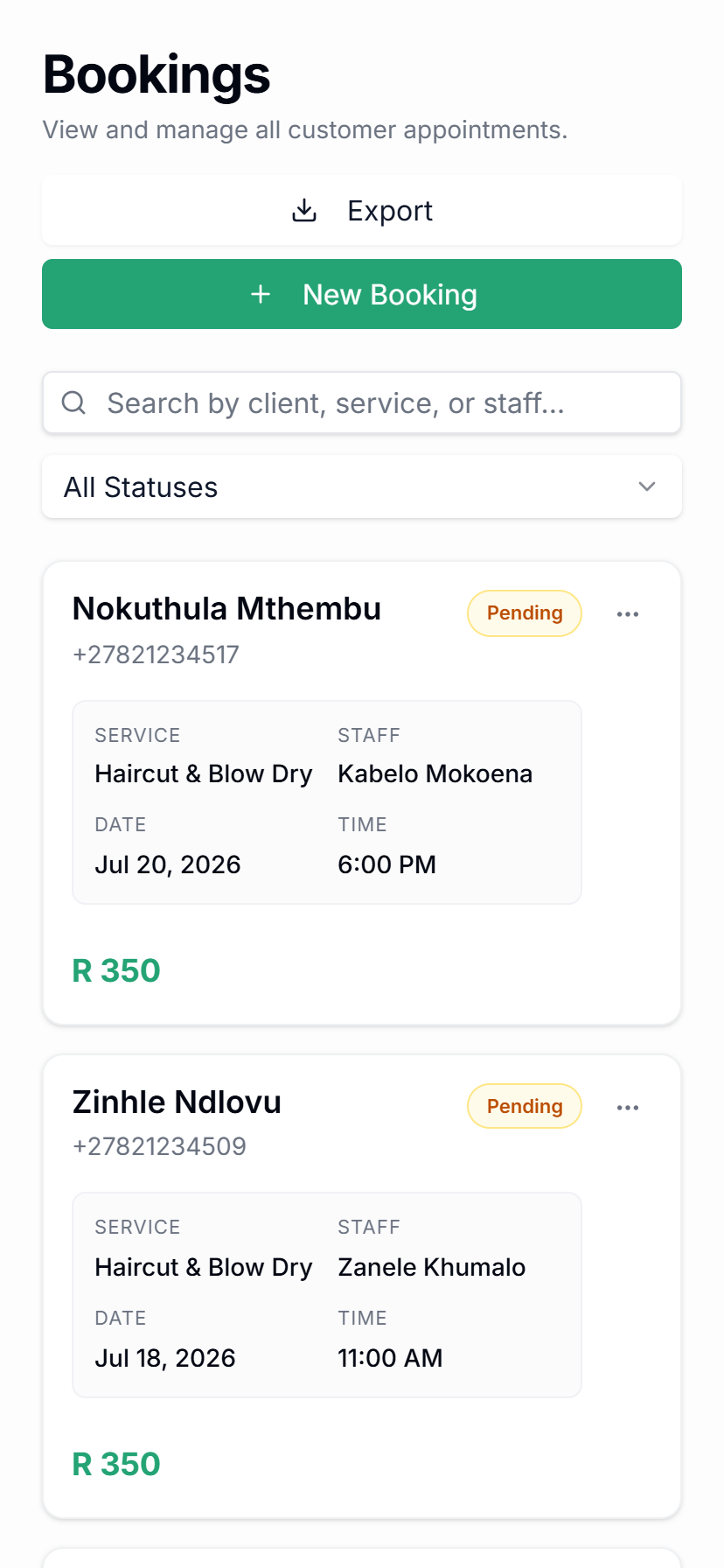
Online Booking

Let clients book online without the back-and-forth.

Create a booking page for your services, staff, and availability. Clients choose a time, add their details, and book without needing to message you first.

How it works

Your booking page is ready in three steps.

Set up the services clients can book, connect availability, then share one link everywhere your clients already find you.

Add a service
Service name
Description
Add Service
1

Add your services

Create services with prices, durations, staff, and booking rules.
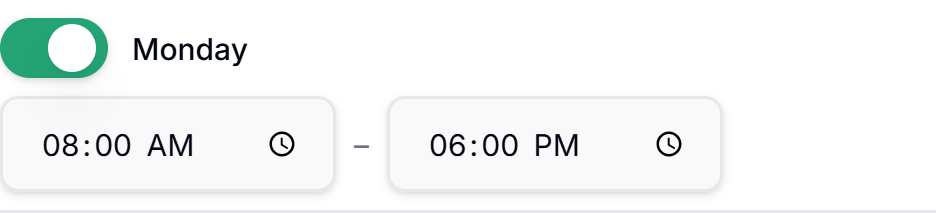
One day's availability configuration
2

Set your availability

Choose when clients can book and keep your schedule organised.

3

Share your booking link

Put your link on WhatsApp, Instagram, your website, or campaigns.

Booking flow

A simple booking flow from service to confirmation.

Clients do not need to phone, message, or wait for a reply. They choose what they need, pick a time that works, and submit the details your team needs.

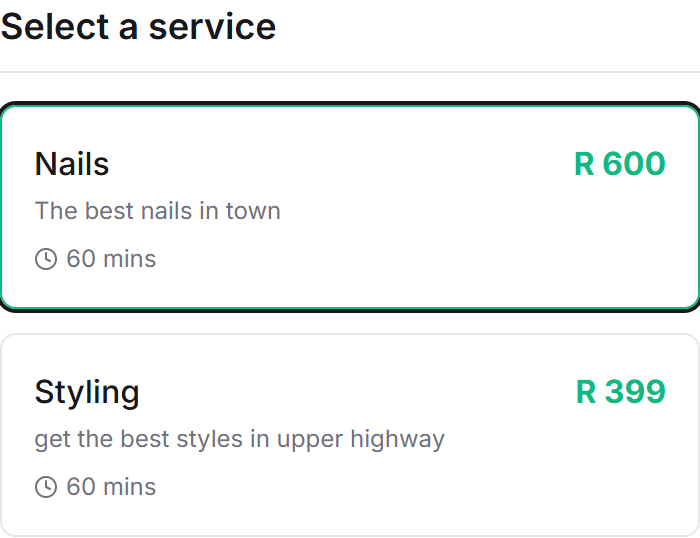
Select a service screen
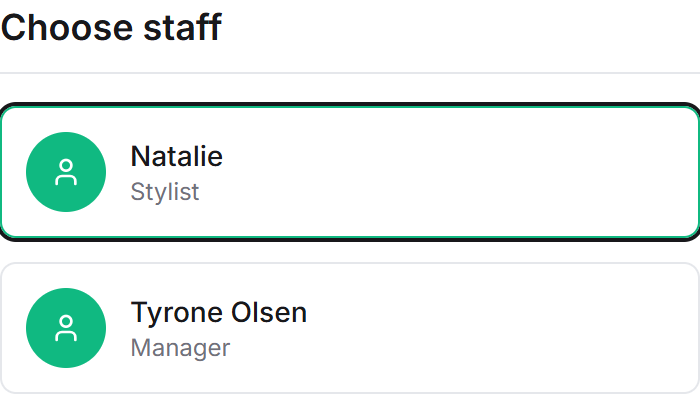
Choose staff screen

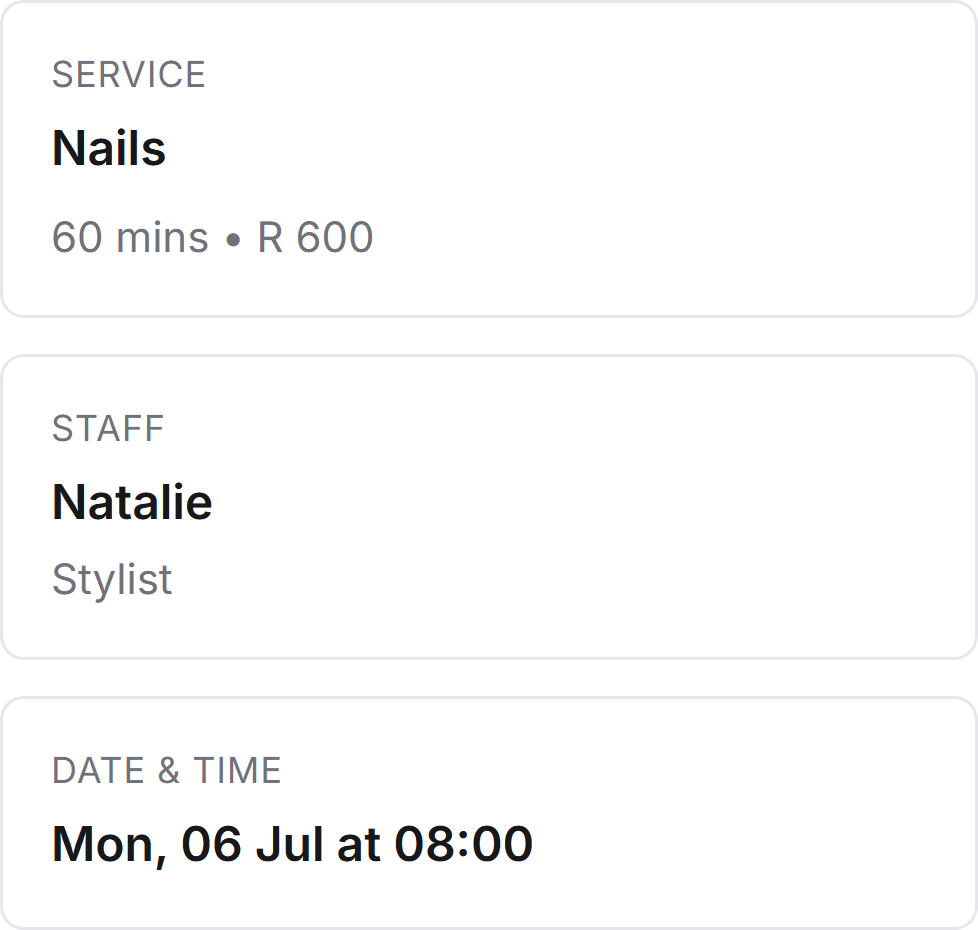
Clients can choose a service, see useful details, and select a preferred staff member or first available option.

Booking page

Everything your booking page handles.

From the first click to the final confirmation, Qwickly gives clients a clear booking experience while keeping your calendar, staff, client records, reminders, and payment rules connected.

01

Your booking page is ready to share.

Give clients one clean booking link they can use from your website, Instagram, Facebook, Google profile, WhatsApp profile, or QR code at reception.

Public booking page Booking link sharing Mobile-first booking
02

Clients know what they are booking.

Show service names, descriptions, prices, durations, categories, and booking requirements so clients can choose confidently before picking a time.

Service selection Prices Durations Categories Descriptions
03

Let clients choose a preferred staff member.

Clients can choose who they want to book with, or select first available when they simply want the earliest suitable appointment.

Staff selection First available Staff-service matching
04

Only show times that actually work.

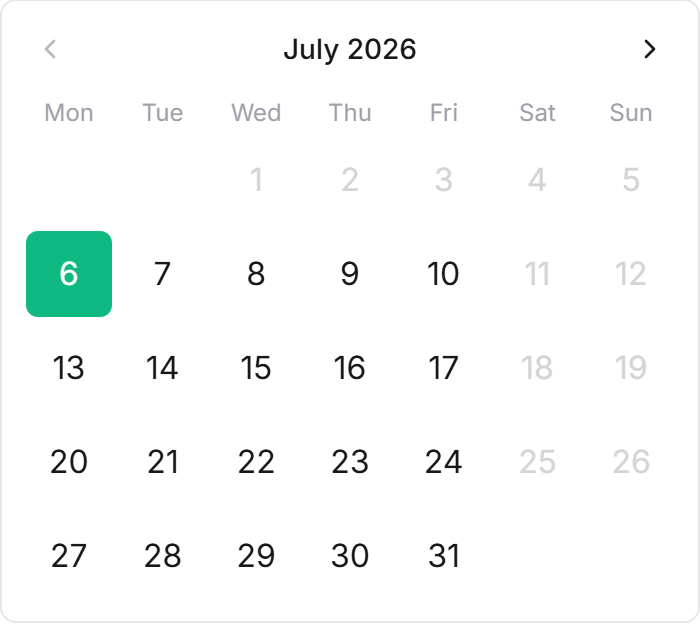
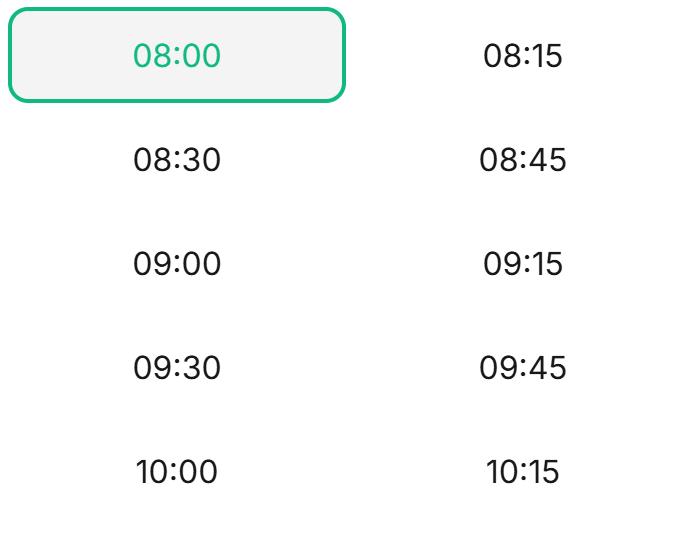
Qwickly checks working hours, breaks, service duration, staff availability, and existing bookings before showing available time slots.

Live availability Working hours Existing bookings Service duration
05

Your rules protect your calendar.

Control how far in advance clients can book, when they can cancel or reschedule, which bookings need approval, and which services require deposits.

Booking notice Cancellation window Reschedule window Approval settings
06

Capture the details your team needs.

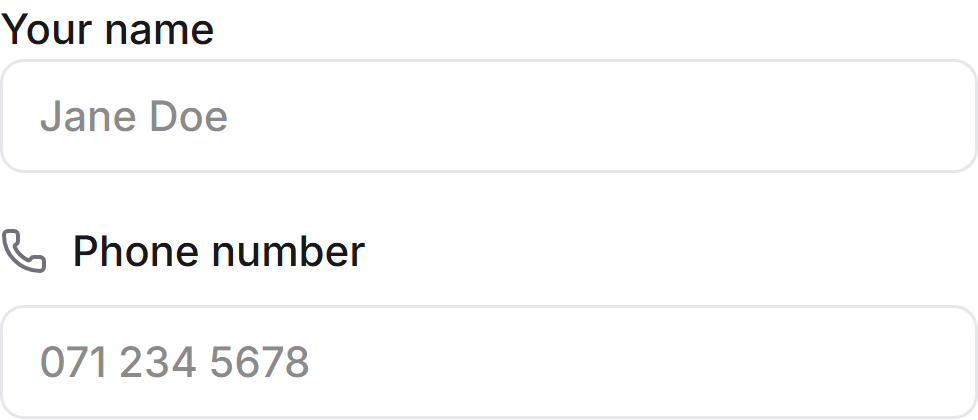
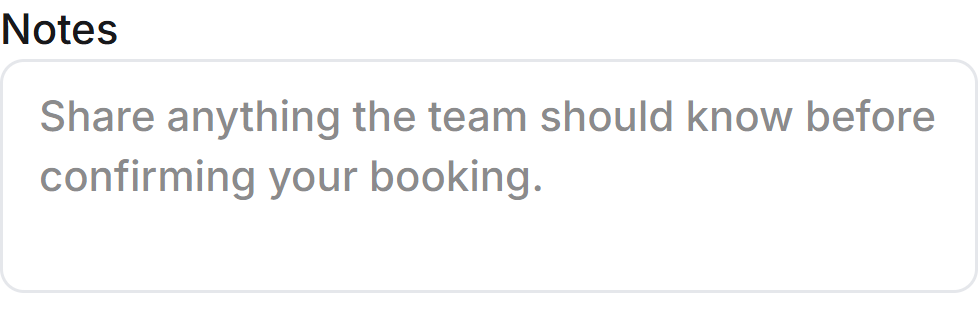
Collect names, contact details, notes, preferences, and booking-specific information before the appointment reaches your team.

Client details Booking notes Preferences Client profile creation
07

Protect important bookings with deposits.

Choose which services need deposits, how much should be paid, and whether payment is required before the booking is confirmed.

Deposits Payment rules No-show protection
08

Confirm the booking clearly.

Clients receive clear booking confirmation, while Qwickly connects the appointment to your calendar, client profile, staff schedule, and reminder workflow.

Confirmation messages Reminder workflow Dashboard sync Calendar sync Client profile sync
Business control

Your booking page follows your rules.

Clients get a simple booking experience, but your business controls the rules behind every appointment.

Screenshot to be added

Booking notice

Set how far in advance clients must book.

Cancellation window

Control when clients can cancel appointments.

Reschedule window

Choose how close to the appointment clients can reschedule.

Deposit rules

Require deposits for selected services or appointment types.

Staff availability

Control working hours, breaks, days off, and which staff can perform each service.

Approval mode

Auto-confirm bookings or save selected bookings for team review.

Before and after

Before and after Online Booking.

Before Qwickly

Scattered bookings

  • Clients wait for replies
  • Staff check times manually
  • Messages get missed
  • Bookings are written down twice
  • Clients forget appointment details
  • Deposits are handled separately
Get started
After Qwickly

One booking link

  • Clients book themselves
  • Availability is shown clearly
  • Bookings land in your dashboard
  • Calendar and client records stay connected
  • Confirmations and reminders are sent
  • Deposits can be collected upfront
Get started
FAQ

Online booking questions.

Quick answers about booking pages, services, staff availability, deposits, reminders, and campaigns.

Can clients book online?
Yes. Clients can use your Qwickly booking page to choose a service, staff member, date, and available time.
Can I add multiple services?
Yes. You can create services with names, durations, prices, staff assignments, and online visibility rules.
Can I set staff availability?
Yes. Staff availability can be used to show clients only the slots that can actually be booked.
Can I choose which services appear online?
Yes. Keep internal services private and only publish the services you want clients to book themselves.
Can clients book from WhatsApp or Instagram?
Yes. Share the same booking link in WhatsApp chats, Instagram bios, websites, and campaigns.
Can I take deposits?
Qwickly supports deposit and payment rules so you can protect your time and reduce no-shows.
Can clients cancel or reschedule?
Booking workflows can support cancellation and reschedule rules depending on how your business wants to manage changes.
Do clients get reminders?
Yes. Online bookings can work with Qwickly reminders so clients stay updated before appointments.
Can I block off unavailable times?
Yes. Blocked times and staff schedules help keep the booking page accurate.
Can I use bookings with campaigns?
Yes. Campaigns can send clients back to your booking link so promotions and reactivation messages lead to appointments.

You have different questions?

Tell us how your booking process works and we will help shape the right Qwickly setup.

Contact us
Coming soon

Coming soon to Online Booking.

We are building more ways for clients to book complex appointments, packages, and repeat sessions online.

Multi-location booking pages

Let clients choose the right branch or location before booking.

Package and course bookings

Support multi-session services, packages, and prepaid course-style bookings.

Waitlist requests

Let clients join a waitlist when their preferred time is unavailable.

Client account login

Give returning clients a faster way to manage their details and bookings.

Booking page themes

Adjust the look of your booking page to better match your brand.

Advanced intake forms

Collect more detailed information before selected services or appointment types.

Online Booking

Ready to simplify your bookings?

Create your booking page, share your link, and let clients choose the time that works for them.

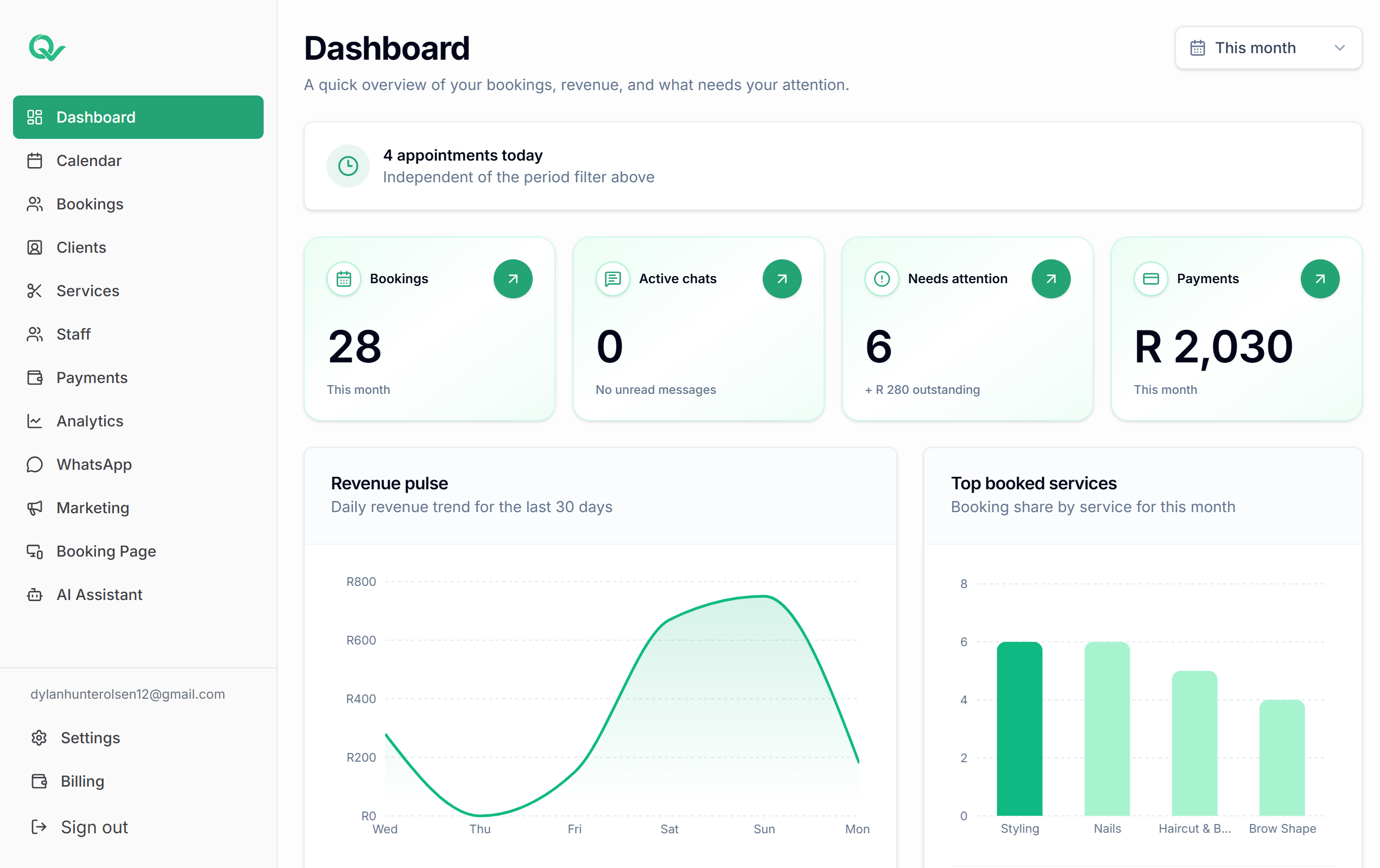
Qwickly dashboard overview
Qwickly bookings on mobile